Xero VAT Returns
From April 2022, all VAT Registered businesses must submit VAT Returns using Making Tax Digital compliant software. At The Hospitality Accountants, all our customers’ VAT Returns are prepared and submitted to HMRC using Xero.
Our customers are sent a copy of their VAT Return to approve and sign prior to submission.
Read on to learn about what each element of the Xero VAT report means.

Contents
- How to access VAT Returns in Xero
- Why and when do you need to access the VAT Returns
- Why do you need to sign your VAT Returns
- Understanding the VAT Return in Xero – what does each ‘box’ mean
- FAQ’s
How to access VAT Returns in Xero
When the approval of an The Hospitality Accountants customer’s VAT Return has been requested, the PDF report can be found and approved within the customer portal.
However, you can also access the current and any past VAT Returns at any time in Xero by heading to Accounting -> Reports -> UK VAT Returns.
Reviewing the report in Xero will allow you to review each transaction in further detail.
All the submitted VAT Returns will be under the ‘Completed’ heading. To view the contents of any VAT Return, click the ‘Review’ button to the right of the period you wish to view. You will initially see the ‘VAT Return overview’ and can select to view ‘Transactions by VAT box’ or ‘Transactions by tax rate’. Each of these tabs will be broken down below.
Why do you need to access the VAT Returns?
In addition to accessing the VAT Return when checking the Return at the approval stage, you may wish to access your previous VAT Returns for guidance in budgeting for future VAT liabilities, or if:
a) you send invoices through Xero,
b) your sales stream into Xero, or
c) your bookkeeping is currently complete and up-to-date
you can check the current VAT Return for an estimate of your upcoming VAT Liability. You can read about how Xero calculates VAT here.
Understanding the VAT Return in Xero

Covering Page
The first tab, or first page of the printed XERO VAT report, is a summary of the figures, presented in the same format as HMRC’s VAT Return.
- Box 1: Contains the total amount VAT that the business has charged in the period
- Box 2: Since 1 January 2021, you’re only allowed to make acquisitions on goods you bring into Northern Ireland from the EU. For acquisitions, you should show the VAT due on all goods and related costs bought from VAT-registered suppliers in EU member states
- Box 3: The sum of boxes 1 and 2
- Box 4: Contains the total amount of deductible VAT charged on your business purchases
- Box 5: The difference between boxes 3 and 4
- Box 6: The total value of all your business sales but leaving out any VAT
- Box 7: The total value of your purchases and expenses but leaving out any VAT
- Box 8: Total value of all supplies of goods and related costs, excluding any VAT, to EU member states
- Box 9: Total value of all acquisitions goods and related costs, excluding any VAT, from EU member states
Note: Some of the boxes will not be relevant to those using the Flat Rate Scheme
Understanding Xero’s VAT Reports (Sections 1 and 2)
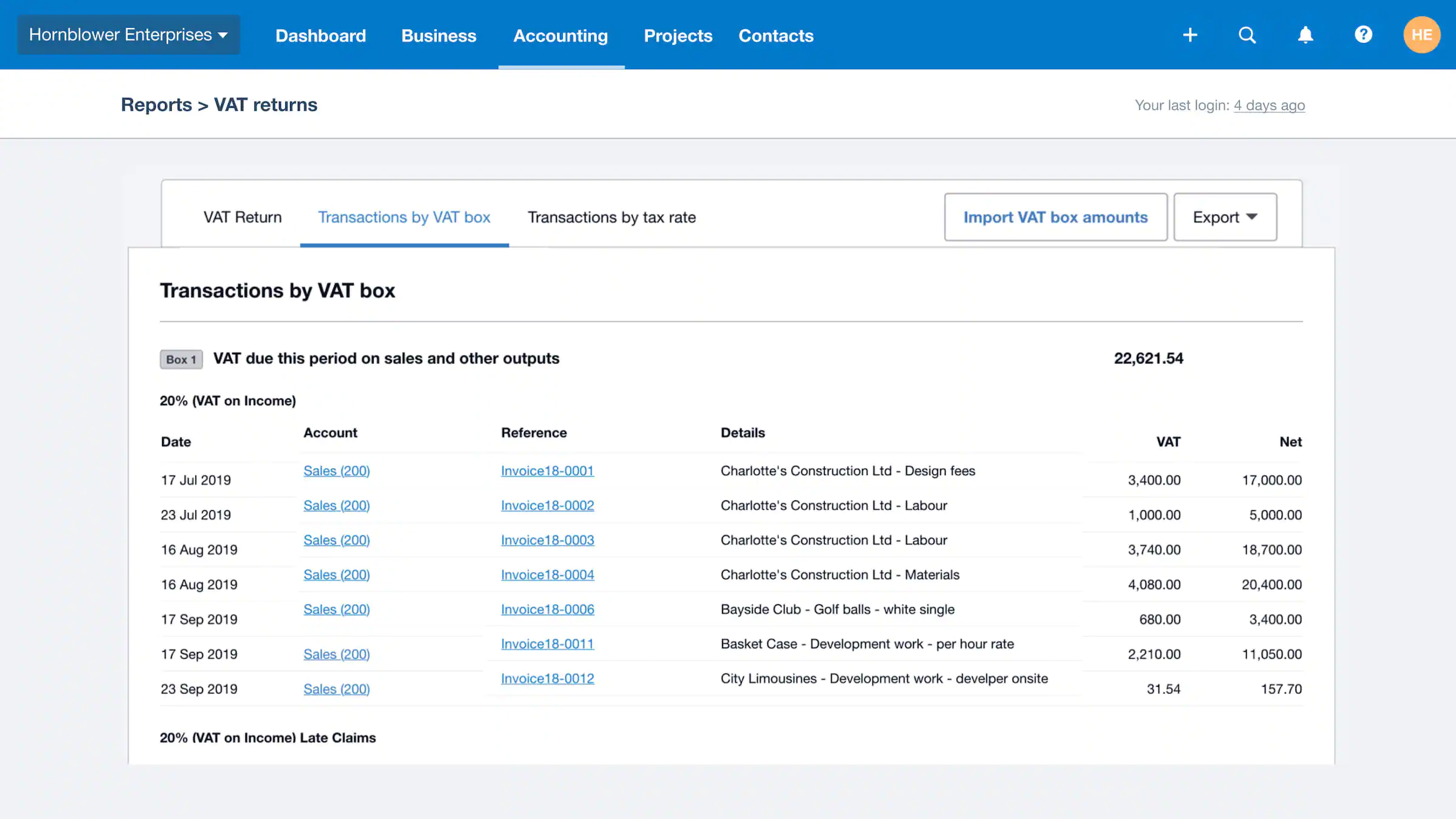
Transactions by VAT box (Section 1)
The transactions that form the total figure in each of boxes 1-9 are listed under each heading. Within each box, there will be subheadings for each different tax rate within that box. E.g. 20% VAT and 5% VAT.
The Basics
- x% (VAT on Income): These are all transactions that are allocated the VAT rate shown as a heading. This should usually only contain sales and refunds.
- x% (VAT on Expenses): These are all Transactions that are allocated the VAT rate shown as a heading. This should usually only contain purchases where the supplier has charged the applicable amount of VAT.
Adjustments
Shown as: x% (VAT on Income/Expenses) – Adjusted
This is where any Xero transactions that have been edited appear. The transactions could have been edited in a range of ways, and for a number of reasons, including:
- Re-coded transactions i.e the account that the income/expense was allocated to has been changed (e.g from “Plant & Machinery” to “Repairs & Maintenance”)
- The tax rate has been changed
- A spend money transaction has been reversed so that it can be matched to a bill
Late Claims
Shown as: x% (VAT on Income/Expenses) – Late Claims
Any transaction under this heading is included in the VAT Return as a late claim. Meaning it took place during the period of a previous VAT Return but wasn’t included in that return.
Adjustments to Late Claims
Shown as: x% (VAT on Income/Expenses) Late Claims – Adjusted
This is the same as the adjustments but for transactions that occurred during a previous VAT period.
Transactions by VAT Rate (Section 2)
Simply displays all the transactions for the period ordered by the tax rate allocated to them. Adjusted Transactions and Late Claims are shown separately, as in the case above.
- x% (VAT on Income/Expenses)
- x% (VAT on Income/Expenses) Adjusted
- x% (VAT on Income/Expenses) Late Claims – Adjusted
- Exempt Expenses
- No VAT
- Zero Rated Expenses
Frequently Asked Questions
Transactions that are negative figures, i.e. within brackets in the report, reduce the total for the section they are listed within, and as expected, positive figures increase the total. The same expense can be included within your VAT Report any number of times.
For example:
A bank transaction of £12.00 (£10.00 + VAT) was reconciled to “Subscriptions”(1), then was removed(2), and recategorised to “IT Software”(3)
In the Xero VAT Return, you would see the following:
- Subscriptions – 20% (VAT on Expenses): £10.00 Net £2.00 VAT
- Subscriptions – 20% (VAT on Expenses) – Adjusted: (£10.00) Net (£2.00) VAT
- IT Software – 20% (VAT on Expenses) – Adjusted: £10.00 Net £2.00 VAT
Result: IT Software – 20% (VAT on Expenses) – Adjusted £10.00 Net £2.00 VAT
If you are viewing the report in Xero, you can click on the transaction to see exactly what has happened. The resulting audit trail is important so that any changes to the VAT Return can be traced.
There are typically more late claims and adjustments on:
- The first VAT Return submitted
- The first VAT return after a set of accounts has been finalised
- After invoices and receipts have been provided late
this is simply because these are all circumstances that would lead to a number of transactions being edited.
One transaction can be split into a number of smaller transactions within the VAT Return. This is because a single bank transaction may be for goods or services that are split into different expense accounts and/or at different VAT Rates. For example, a restaurant may spend £40 at a wholesaler, £30 on Zero-Rated food products, and £10 (including VAT at 20%) on cleaning products; this bill would appear as two separate lines on the return due to the differing categorisation and VAT treatments within the single transaction.
Wages are visible within the VAT reports simply because Xero includes all transactions for the period in the report. They will never impact the amount of VAT payable when processed correctly.
- Why do you need to sign your VAT Returns?
Each VAT Return submitted by The Hospitality Accountants is signed prior to submission by either:
- The Sole Trader
- An authorised Partner in a Partnership
- An authorised Director of a Limited Company
to verify that they deem the return correct and complete.
This ensures that the VAT-registered business fulfills its responsibility, ensuring the return is accurate and that proper VAT records are kept.
*Note: Further documents may need signing if the VAT Return contains adjustments that exceed HMRC’s VAT adjustment threshold.
Are you maximising the full potential of your hospitality business? Try our free Hospitality business financial health check.